Jekyll SSL Setup: HTTPS for Jekyll Sites on GitHub Pages, Render, Nginx and Caddy

A Jekyll SSL setup has two halves. First, the host serves your built _site/ over HTTPS with a valid certificate and redirects HTTP to HTTPS: GitHub Pages, Render, Netlify and Enkihost do this automatically, and on your own server, certbot with Nginx or Caddy does it for free with Let’s Encrypt. Second, the Jekyll side has to agree: url in _config.yml must start with https://, and no page may load images, scripts or styles over http://. This How-To covers both halves for every common host, with complete Nginx and Caddy configs, a safe HSTS rollout, and fixes for the errors you’ll actually see.
TL;DR
- On GitHub Pages, Render, Netlify, Cloudflare Pages, Upsun and Enkihost, certificates are issued and renewed automatically. You configure DNS, wait for issuance, and turn on the HTTP→HTTPS redirect if it isn’t on by default.
- On your own server, use certbot with Nginx (
certbot certonly --webroot+ a 301 redirect), or Caddy, which obtains and renews certificates with no configuration.- Set
url: "https://example.com"in_config.yml(no trailing slash), build withJEKYLL_ENV=production, and grep_site/forsrc="http://to find mixed content.- Add HSTS only after every subdomain serves HTTPS, and start with a short
max-age.- Jekyll assets aren’t fingerprinted, so cache them for days, not a year, unless you add digests to filenames.
Table of Contents
- How does SSL work for a Jekyll site?
- Prerequisites
- Step 1: Configure Jekyll for HTTPS
- Step 2: Enable HTTPS on a managed host
- Step 3: Self-host with Nginx and Let’s Encrypt
- Step 4: Or self-host with Caddy
- Step 5: Fix mixed content and add HSTS
- Step 6: Verify it works
- How Heroku, Render, Fly.io, Upsun and Enkihost handle HTTPS for static sites
- Troubleshooting Jekyll SSL
- Author Perspective: the certificate is the easy part
- Jekyll hosting with HTTPS on Enkihost
- FAQ
- Sources
How does SSL work for a Jekyll site?
Jekyll generates static files. It never handles HTTPS itself in production. The web server or hosting platform in front of _site/ holds the TLS certificate, terminates HTTPS, and redirects plain HTTP. Jekyll’s only job is to generate URLs and asset references that use https://.
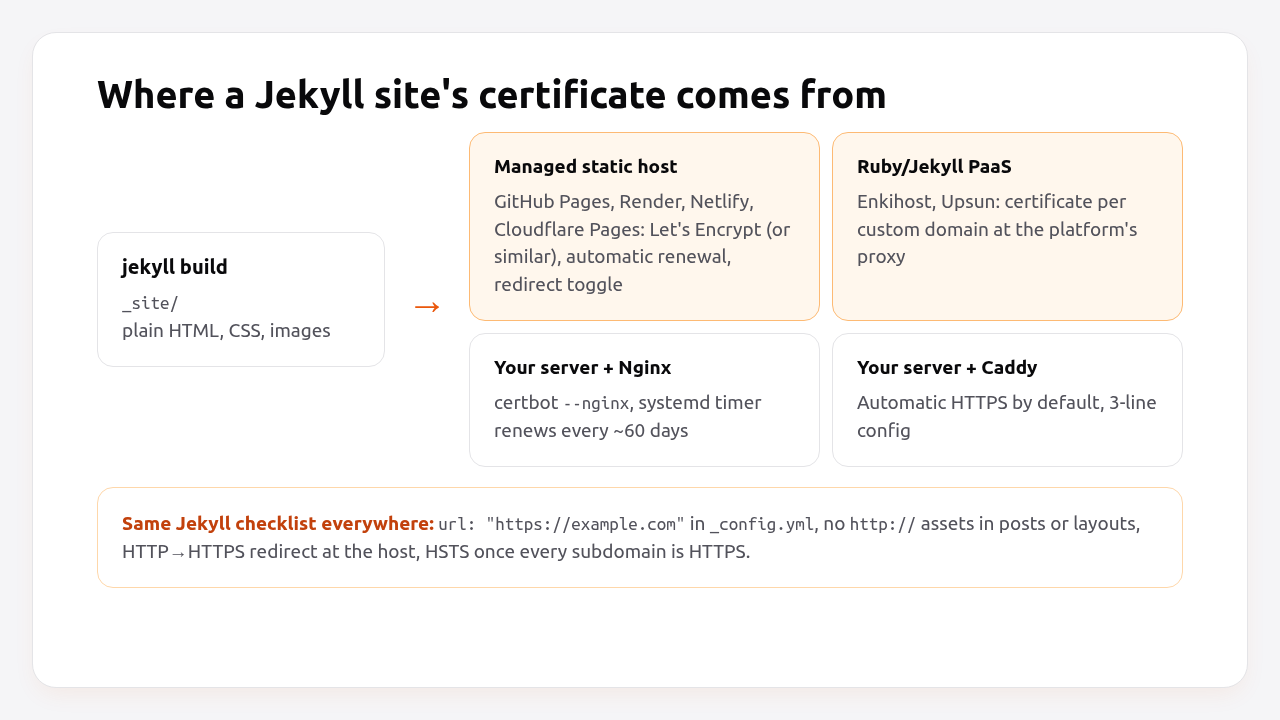
| Where the site runs | Who gets the certificate | Renewal | HTTP→HTTPS redirect |
|---|---|---|---|
| GitHub Pages | GitHub (Let’s Encrypt) | Automatic | “Enforce HTTPS” checkbox |
| Render static site | Render (Let’s Encrypt / Google Trust Services) | Automatic | Automatic |
| Netlify, Cloudflare Pages | The platform | Automatic | Automatic or a toggle |
| Upsun, Enkihost | The platform’s proxy, per custom domain | Automatic | Automatic for HTTPS routes |
| Your server with Nginx | You, with certbot | systemd timer | You (a return 301) |
| Your server with Caddy | Caddy | Automatic | Automatic |
“SSL” here really means TLS. SSL itself has been obsolete for years, but the name stuck, and certificates are still called SSL certificates.
Prerequisites
- A Jekyll 4.x site that builds with
bundle exec jekyll build. - A domain you control, with access to its DNS records.
- For self-hosting: a Debian or Ubuntu server with ports 80 and 443 open to the internet, and
sudoaccess.
Step 1: Configure Jekyll for HTTPS
Tell Jekyll the site’s canonical URL is HTTPS, so every absolute link, the feed, the sitemap and SEO tags use it.
# _config.yml
url: "https://example.com"   # scheme + host, no trailing slash
baseurl: ""                  # "" for a site at the domain root, "/blog" for a subpath
A trailing slash in url produces double slashes (https://example.com//feed.xml) in anything built with absolute_url, so leave it off.
In templates, build links with Jekyll’s filters instead of hardcoding the scheme:
<!-- _includes/head.html -->
<link rel="canonical" href="{{ page.url | absolute_url }}">
<link rel="alternate" type="application/rss+xml" href="{{ '/feed.xml' | absolute_url }}">
<meta property="og:image" content="{{ '/assets/images/og.png' | absolute_url }}">
Build for production so plugins such as jekyll-seo-tag, jekyll-feed and jekyll-sitemap use url instead of localhost:
JEKYLL_ENV=production bundle exec jekyll build
If you want to test HTTPS locally, jekyll serve can serve over TLS with a locally trusted certificate:
mkcert -install && mkcert localhost
bundle exec jekyll serve --ssl-cert localhost.pem --ssl-key localhost-key.pem
# Server address: https://127.0.0.1:4000/
Step 2: Enable HTTPS on a managed host
On managed hosts, HTTPS is mostly a matter of DNS and waiting for the certificate. The platform does the rest.
GitHub Pages. Point DNS at GitHub, add the custom domain, then enable HTTPS:
# DNS for an apex domain
example.com.      A      185.199.108.153
example.com.      A      185.199.109.153
example.com.      A      185.199.110.153
example.com.      A      185.199.111.153
www.example.com.  CNAME  yourname.github.io.
Then in Settings → Pages, enter example.com as the custom domain, wait for the DNS check and certificate, and tick Enforce HTTPS. Remove any extra A/AAAA records that point elsewhere, or the certificate won’t be issued.
Render static site. Create a static site with:
# render.yaml
services:
  - type: web
    runtime: static
    name: my-jekyll-site
    buildCommand: bundle install && JEKYLL_ENV=production bundle exec jekyll build
    staticPublishPath: ./_site
    domains:
      - example.com
      - www.example.com
    headers:
      - path: /*
        name: Strict-Transport-Security
        value: max-age=31536000; includeSubDomains
Render issues certificates for both domains and redirects HTTP to HTTPS automatically.
Netlify / Cloudflare Pages. Set the build command to JEKYLL_ENV=production bundle exec jekyll build and the publish directory to _site, add the custom domain, and the platform provisions the certificate. On Netlify, keep Force HTTPS on (the default once a certificate exists).
Enkihost. Enkihost hosts Jekyll sites and issues certificates for custom domains at its proxy. That architecture is described in how we built a PaaS on Coolify and Docker.
Step 3: Self-host with Nginx and Let’s Encrypt
On your own server, get a free Let’s Encrypt certificate with certbot, serve _site/ from Nginx over HTTPS, and redirect everything else there.
1. Install Nginx and certbot:
sudo apt update
sudo apt install -y nginx certbot
sudo mkdir -p /var/www/certbot /var/www/example.com/current
2. Start with an HTTP-only server that can answer the Let’s Encrypt challenge:
# /etc/nginx/sites-available/example.com
server {
    listen 80;
    listen [::]:80;
    server_name example.com www.example.com;

    location /.well-known/acme-challenge/ {
        root /var/www/certbot;
    }

    location / {
        return 301 https://example.com$request_uri;
    }
}
sudo ln -s /etc/nginx/sites-available/example.com /etc/nginx/sites-enabled/
sudo nginx -t && sudo systemctl reload nginx
3. Request the certificate for both names:
sudo certbot certonly --webroot -w /var/www/certbot \
  -d example.com -d www.example.com \
  --deploy-hook "systemctl reload nginx"
4. Add the HTTPS servers to the same file:
# /etc/nginx/sites-available/example.com (append below the port 80 server)
server {
    listen 443 ssl;
    listen [::]:443 ssl;
    http2 on;
    server_name www.example.com;

    ssl_certificate     /etc/letsencrypt/live/example.com/fullchain.pem;
    ssl_certificate_key /etc/letsencrypt/live/example.com/privkey.pem;

    return 301 https://example.com$request_uri;
}

server {
    listen 443 ssl;
    listen [::]:443 ssl;
    http2 on;
    server_name example.com;

    root /var/www/example.com/current;
    index index.html;

    ssl_certificate     /etc/letsencrypt/live/example.com/fullchain.pem;
    ssl_certificate_key /etc/letsencrypt/live/example.com/privkey.pem;
    ssl_protocols TLSv1.2 TLSv1.3;
    ssl_session_cache shared:SSL:10m;

    add_header Strict-Transport-Security "max-age=300" always;   # raise later, see Step 5

    location / {
        try_files $uri $uri.html $uri/ =404;
    }

    location ~* \.(css|js|png|jpe?g|gif|svg|webp|ico|woff2?)$ {
        expires 7d;
        add_header Cache-Control "public";
        add_header Strict-Transport-Security "max-age=300" always;   # add_header in a location replaces the server's
    }

    error_page 404 /404.html;
}
sudo nginx -t && sudo systemctl reload nginx
5. Deploy the site by syncing the build output:
JEKYLL_ENV=production bundle exec jekyll build
rsync -az --delete _site/ deploy@example.com:/var/www/example.com/current/
6. Confirm automatic renewal. Debian’s certbot package installs a systemd timer that renews certificates about 30 days before they expire:
systemctl list-timers | grep certbot
sudo certbot renew --dry-run
Pro Tip: The second add_header in the assets location isn’t a mistake. In Nginx, any add_header inside a location block replaces all add_header directives inherited from the server block. Without repeating HSTS there, your images and CSS are served without it.
Step 4: Or self-host with Caddy
Caddy gets and renews certificates automatically and redirects HTTP to HTTPS by default, so the whole configuration fits on one screen.
sudo apt install -y caddy
# /etc/caddy/Caddyfile
example.com {
    root * /var/www/example.com/current
    encode zstd gzip
    file_server
    try_files {path} {path}.html {path}/

    header Strict-Transport-Security "max-age=300"
    @assets path *.css *.js *.png *.jpg *.jpeg *.svg *.webp *.woff2
    header @assets Cache-Control "public, max-age=604800"

    handle_errors {
        rewrite * /404.html
        file_server
    }
}

www.example.com {
    redir https://example.com{uri} permanent
}
sudo systemctl reload caddy
journalctl -u caddy --since "5 min ago" | grep -i certificate
Caddy needs ports 80 and 443 reachable and DNS pointing at the server before the first start. Otherwise it retries certificate issuance with backoff.
Step 5: Fix mixed content and add HSTS
Once the site is on HTTPS, any image, script or stylesheet still loaded over http:// triggers mixed-content warnings or is blocked. Find them in the built site, not the source, because includes and data files also contribute.
JEKYLL_ENV=production bundle exec jekyll build
grep -rnoE '(src|srcset)="http://[^"]+' _site | head
grep -rnoE 'url\(["'"'"']?http://[^)]+' _site | head
grep -rnoE '<link[^>]+href="http://[^"]+' _site | head
Fix each one at the source: change hardcoded http:// asset URLs to https:// or to a path (/assets/images/...), and download images from third-party hosts into assets/ rather than hotlinking them. Plain <a href="http://..."> links to other sites aren’t mixed content. They’re only navigation, though switching them to https:// where available is still good practice.
HSTS rollout. HSTS tells browsers to use HTTPS automatically for a period of time. Increase it in stages, because browsers cache it and you can’t take it back early:
| Stage | Header | Wait before next stage |
|---|---|---|
| 1 | max-age=300 |
A day |
| 2 | max-age=604800; includeSubDomains |
A week, after checking every subdomain has HTTPS |
| 3 | max-age=31536000; includeSubDomains |
— |
| 4 (optional) | max-age=63072000; includeSubDomains; preload |
Submit at hstspreload.org |
The same rollout applies to Rails apps, as explained in how to force HTTPS in Rails.
Step 6: Verify it works
Check redirects, the certificate, HSTS and mixed content from the outside.
# HTTP and www redirect to the canonical HTTPS URL
curl -sI http://example.com/blog/ | grep -iE "^HTTP|^location"
curl -sI https://www.example.com/blog/ | grep -iE "^HTTP|^location"
# 301 → location: https://example.com/blog/

# Certificate covers both names and isn't expiring soon
echo | openssl s_client -connect example.com:443 -servername example.com 2>/dev/null \
  | openssl x509 -noout -subject -ext subjectAltName -dates

# HSTS on pages and on assets
curl -sI https://example.com/ | grep -i strict-transport
curl -sI https://example.com/assets/main.css | grep -i strict-transport

# Canonical and feed URLs use https
curl -s https://example.com/ | grep -oE 'rel="canonical" href="[^"]+"'
curl -s https://example.com/feed.xml | grep -oE '<link[^>]+href="[^"]+"' | head -2
Then open the site in a browser with the developer console open. A clean console with no “Mixed Content” warnings, plus an A or A+ from SSL Labs’ server test, means you’re done.
How Heroku, Render, Fly.io, Upsun and Enkihost handle HTTPS for static sites
All five can serve a Jekyll site over HTTPS, but only some have a native static-site product. The others run Jekyll’s output behind a web server in an app container, and the HTTPS details follow from that.
| Platform | How a Jekyll site runs | Certificate | HTTP→HTTPS redirect | Cost for a small site |
|---|---|---|---|---|
| Heroku | As an app: buildpack builds _site, a web server (e.g. Nginx buildpack or Rack) serves it |
Automated Certificate Management | No router redirect, so the web server must do it | Paid dyno |
| Render | Native static site on a global CDN | Automatic (Let’s Encrypt / Google Trust Services) | Automatic | Free tier; custom domain limits per plan |
| Fly.io | Nginx or Caddy container serving _site |
fly certs add example.com |
force_https = true in fly.toml |
Smallest Machine |
| Upsun | App with web.locations serving _site |
Automatic Let’s Encrypt, renewed before expiry | Automatic for https:// routes |
Per project resources |
| GitHub Pages | Native, built by GitHub Actions or the Pages builder | Let’s Encrypt | “Enforce HTTPS” toggle | Free |
| Enkihost | Spark plan: built in a multi-stage image and served by Nginx | Automatic Let’s Encrypt at the proxy | Not documented | 0 EUR on Spark |
Render’s native static sites and GitHub Pages are the simplest for a pure Jekyll site. Heroku is the one where HTTPS takes extra work: its router doesn’t redirect HTTP, so the server inside the dyno has to.
Enkihost hosts Jekyll sites as a first-class runtime, alongside Ruby, Rails and Sinatra apps, and handles certificates for custom domains at its proxy, as described in our Enkihost introduction and architecture post.
Troubleshooting Jekyll SSL
GitHub Pages: “Enforce HTTPS — Unavailable for your site”
Enforce HTTPS — Unavailable for your site because your domain is not properly configured to support HTTPS
DNS doesn’t point only at GitHub’s IPs yet, or the certificate is still being issued. Remove extra A/AAAA records (for example a leftover AAAA from an old host), wait, and if nothing changes after an hour, remove and re-add the custom domain to restart provisioning.
certbot: Timeout during connect (likely firewall problem)
Certbot failed to authenticate some domains (authenticator: webroot).
  Domain: example.com
  Type:   connection
  Detail: 203.0.113.10: Fetching http://example.com/.well-known/acme-challenge/…: Timeout during connect (likely firewall problem)
Let’s Encrypt can’t reach port 80. Open it (sudo ufw allow 80/tcp), check the cloud provider’s firewall, and make sure DNS for both names already points at this server.
NET::ERR_CERT_COMMON_NAME_INVALID on www
The certificate only covers example.com. Re-run certbot with both -d example.com -d www.example.com, or on managed hosts add www as a domain too.
Mixed content warnings after switching to HTTPS
Mixed Content: The page at 'https://example.com/blog/post/' was loaded over HTTPS, but requested an insecure image 'http://example.com/assets/images/old.png'.
A post or layout hardcodes http://. Run the grep commands from Step 5 on _site/ and fix the sources. If url in _config.yml still says http://, every absolute_url will too.
ERR_TOO_MANY_REDIRECTS behind Cloudflare
Cloudflare’s Flexible mode connects to your origin over HTTP, and your server redirects that to HTTPS, so the loop never ends. Switch Cloudflare to Full (strict) once the origin has a valid certificate.
HSTS header missing on CSS and images
You set add_header inside an Nginx location (for caching), which drops the server-level HSTS header for those files. Repeat the HSTS header in that location, as in Step 3.
Author Perspective: the certificate is the easy part
Getting a certificate for a static site is close to a solved problem: every host does it, and on my own servers certbot or Caddy does it in a minute. What actually breaks HTTPS on Jekyll sites is everything around the certificate: a url: still set to http:// from 2016, an old post hotlinking an image from a site that’s gone, a www subdomain nobody added to the certificate, an Nginx location that silently drops the HSTS header. If I could add only one check to a Jekyll site’s CI, it would be the grep from Step 5, failing the build on any src="http://". It’s two lines, and it’s the check that keeps HTTPS working.
Jekyll hosting with HTTPS on Enkihost
Enkihost was built with Jekyll sites as a first-class citizen, next to Ruby, Rails and Sinatra apps:
- Ruby hosting built by Rubyists, with Jekyll as a supported runtime, so
bundle exec jekyll buildruns the way it does on your machine. - Certificates for custom domains handled at the platform’s proxy, so the Jekyll-side checklist above (
url, mixed content, HSTS) is all that’s left for you. - Zero-downtime deploys, so publishing a post never shows visitors a half-uploaded
_site/. - Per-app resource isolation, and plans at Spark (0 EUR, one Jekyll site), Ignite (9 EUR) and Blaze (29 EUR) per month, with a 14-day free trial on Ignite.
See enkihost.com.
FAQ
Does Jekyll support HTTPS?
Jekyll generates static files and doesn’t serve production traffic, so HTTPS is handled by the host or web server in front of the generated _site folder. Jekyll’s part is to use https in the url setting of _config.yml and avoid http asset references. For local testing, jekyll serve accepts –ssl-cert and –ssl-key options.
Is SSL free for Jekyll sites?
Yes, in almost every setup. GitHub Pages, Render, Netlify, Cloudflare Pages and most platforms issue certificates at no charge, and on your own server Let’s Encrypt certificates are free through certbot or Caddy. You only pay if you want a specific commercial certificate type, such as extended validation.
Why does my Jekyll site show “Not Secure” after enabling HTTPS?
Usually because a page still loads an image, script or stylesheet over http, which browsers report as mixed content. Search the built _site folder for src=”http:// and fix the sources, and make sure url in _config.yml starts with https.
How do I redirect www to the root domain on a Jekyll site?
Do it on the host, not in Jekyll. On Nginx, add a server block for www that returns a 301 to the root domain; on Caddy, use redir; on GitHub Pages, Render and Netlify, add both domains and set the root domain as primary. Make sure the certificate covers both names.
How often do Let’s Encrypt certificates need renewing?
Let’s Encrypt certificates are valid for 90 days. certbot’s systemd timer and Caddy both renew automatically well before expiry, typically around 30 days before. Managed hosts renew for you. Run certbot renew –dry-run once after setup to confirm renewal works on your own server.
Sources
- Jekyll configuration options — jekyllrb.com
- Jekyll Liquid filters: absolute_url — jekyllrb.com
- Securing your GitHub Pages site with HTTPS — GitHub Docs
- Static sites — Render Docs
- Custom domains and certificates — Fly Docs
- HTTPS routes — Upsun Docs
- Automated Certificate Management — Heroku Dev Center
- Certbot instructions — EFF
- Automatic HTTPS — Caddy Docs
- ngx_http_headers_module: add_header inheritance — nginx.org
- Mixed content — MDN